Eulering
Heyyyyyyyyy, what’s up, fools?
So remember Project Euler, that site that has hundreds of programming challenge problems? Well, I haven’t had much time for it lately (blame school), but today I decided to log back in and see if there was a problem I could try. And I found one!
This is the problem:
Passcode derivation (Problem 79): A common security method used for online banking is to ask the user for three random characters from a passcode. For example, if the passcode was 531278, they may ask for the 2nd, 3rd, and 5th characters; the expected reply would be: 317.
The text file, keylog.txt, contains fifty successful login attempts.
Given that the three characters are always asked for in order, analyse the file so as to determine the shortest possible secret passcode of unknown length.
This is one that I was able to solve by hand pretty easily, but since it’s a coding challenge site, I figured I ought to give it a shot using R. It took me a bit to get my code just right (there was one particular thing I was trying to do and I couldn’t figure out how to do it in R, so I had to modify things a bit), but I finally got it right!
Anyway, I’m not going to share my code here (it’s discouraged to share solutions outside the problem forums, each of which can only be accessed once you’ve input the correct answer for a given problem), but I thought that this was a super interesting and fun question to try. It’s easy to do by hand, but in my opinion a bit harder to do with code.
If you like this type of stuff, try it out!
Also, happy birthday, mom!
Conduct of Code
OH MY GOD this looks like fun.
From the site (and in case you don’t want to click the link for whatever reason): “Project Euler is a series of challenging mathematical/computer programming problems that will require more than just mathematical insights to solve. Although mathematics will help you arrive at elegant and efficient methods, the use of a computer and programming skills will be required to solve most problems. The motivation for starting Project Euler, and its continuation, is to provide a platform for the inquiring mind to delve into unfamiliar areas and learn new concepts in a fun and recreational context.”
The problems look fairly challenging (at least, challenging in R, which of course is my programming language of choice, I mean c’mon), but at least it will give me a good excuse to practice!
Edit: hahaha, I’ve done like five of them already. But the rest look super hard!
LOOK WHAT I MADE LOOK
Want to see my pretty? Or part of it?
This is the spreadsheet.

Here’s what it looks like when I select DAISY as the file type.
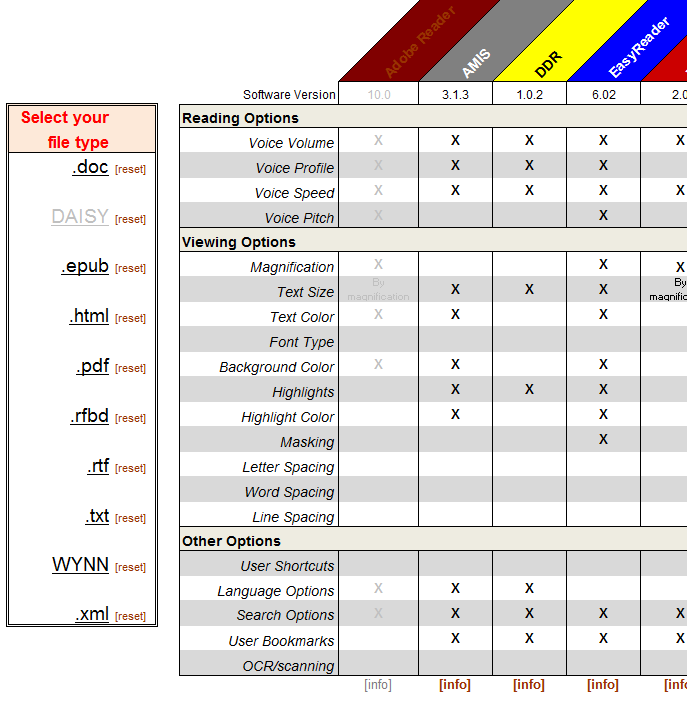
Here’s what it looks like when I select .epub as the file type.

Like two days ago, I had no idea you could do this in Excel. Excel has gained a whole new level of respect from me. Not that it cares.
(In my head, Excel is the most arrogant of the Microsoft Office products)
The obsessive part of me wants to now go back and fix the code for this so that it’s not six billion lines long.So that might have to happen soon.
Haha, sorry, I’m excited.
END!
Adventures in R: Decisions, Decisions, Decisions!
Hokay. So. Here’s the earth. Here’s what’s going down at work:
My boss put me in charge of writing up all these instructions for the ten or so AT programs that are used at Pima Community College. These programs make text/images/etc. on the computer accessible for students who need something to help them learn, be that need from a physical disability (low-vision, blindness, etc.), a learning disability, or some other such thing. These programs can do a lot of things: read text aloud on the computer, enhance displayed text so that it’s easier to read (magnification, color change, background color change, etc.), highlight individual words as their read…things like that.
Cool, huh?
It turns out, though, that of the twelve or so general features we utilize from these programs, each of the programs is able to different things. For example, a person using FS Reader will only able to change voice speed and magnify the screen, whereas a person using Kurzweil 1000 will pretty much be able to alter the visual and spoken text any way they wish.
The problem with this program diversity is that it makes it fairly difficult to help students choose which program is best for them—especially considering you have to keep track of ten different programs, some of which change with each software update.
So one of my tasks at work has been to make some sort of visualization that shows which programs have which features.
Which has turned out to be a more arduous task than first thought. Mainly because it’s difficult to include both the “reading features” (those related to the text-to-speech) and the “visualization features” (those related to how the text can be manipulated on screen).
The most “uncomplicated” visual I could do for the reading features was this pyramid thingy (even a regular flowchart looked horrible).

You don’t want to see the pictures for the visualization features. They’re horrible. There are twelve main features and no two programs have the same features. As you can probably guess, the pyramid looks like somebody vomited words everywhere and the flowchart looks…well, even worse.
My boss finally told me not to worry about a visualization for the features just yet, but I wanted to see if there was a way that I (with my lack of programming skills in everything but R) could make some sort of automatic “decision maker” that would spit out the appropriate program(s) if a user input what features they required.
So what did I, with my lack of programming skills in everything but R, use to do this?
R!
It took like four days, too. Either I’m a moron and over-thought this waaaay too much or it really is this complicated to implement in R.
Either way, here we go:
I wanted to make it so that someone wanting to figure out what AT program they needed could just input a binary YES/NO for each of the four reading options, copy this info in to R, and automatically get an output telling them what they could use. So I made this little Excel thing (click to enlarge, as always).

Next, I had to figure out a way to program my R function so that it would spit out the appropriate program for the given input (e.g., if I needed all four reading features, it would only show me Adobe Reader, EasyReader, Kurzweil and MAGic). This part wasn’t that big of a deal. But when I wanted to also make it possible for the function to spit out the appropriate program for ALL levels of customization (like if I wanted just voice speed to be editable, the function would give me ALL programs as options, not just FS Reader), things got a bit more difficult.
So I finally just made a code that included what to output for all possible combinations of the four reading features.
tellme <- function(x,print=TRUE)
{ A=sum(x[,1])==1
B=sum(x[,2])==1
C=sum(x[,3])==1
D=sum(x[,4])==1
E=(sum(x[,1])==1)&&(sum(x[,2])==1)
F=(sum(x[,1])==1)&&(sum(x[,3])==1)
G=(sum(x[,1])==1)&&(sum(x[,4])==1)
H=(sum(x[,2])==1)&&(sum(x[,3])==1)
I=(sum(x[,2])==1)&&(sum(x[,4])==1)
J=(sum(x[,1])==1)&&(sum(x[,2])==1)&&(sum(x[,3])==1)
K=(sum(x[,1])==1)&&(sum(x[,2])==1)&&(sum(x[,4])==1)
L=(sum(x[,1])==1)&&(sum(x[,3])==1)&&(sum(x[,4])==1)
M=(sum(x[,2])==1)&&(sum(x[,3])==1)&&(sum(x[,4])==1)
N=(sum(x[,1])==1)&&(sum(x[,2])==1)&&(sum(x[,3])==1)
&&(sum(x[,4])==1)
O=(sum(x[,3])==1)&&(sum(x[,4])==1)
if (A==TRUE)
{FSReader="YES"}
 else if (A==FALSE)
{FSReader="NO"}
if (A==TRUE|B==TRUE|E==TRUE)
{NaturalReader="YES"}
else if (C==TRUE|D==TRUE|F==TRUE|G==TRUE|H==TRUE|
I==TRUE|J==TRUE|K==TRUE|L==TRUE|M==TRUE|N==TRUE)
 {NaturalReader="NO"}
if (A==TRUE|B==TRUE|C==TRUE|E==TRUE|F==TRUE|H==TRUE)
{WYNN="YES"}
else if (D==TRUE|G==TRUE|I==TRUE|J==TRUE|K==TRUE|L==TRUE|
M==TRUE|N==TRUE)
{WYNN="NO"}
if (A==TRUE|B==TRUE|C==TRUE|D==TRUE|E==TRUE|F==TRUE|
G==TRUE|H==TRUE|I==TRUE|J==TRUE|K==TRUE|L==TRUE|
M==TRUE|N==TRUE)
{AdobeReader="YES"
 EasyReader="YES"
Kurzweil1000="YES"
MAGic="YES"}
else if (C==TRUE|D==TRUE|F==TRUE|G==TRUE|H==TRUE|I==TRUE|
J==TRUE|K==TRUE|L==TRUE|M==TRUE|N==TRUE)
{AdobeReader="NO"
EasyReader="NO"
Kurzweil1000="NO"
MAGic="NO"}
result <- rbind(FSReader, NaturalReader, WYNN, AdobeReader,
EasyReader, Kurzweil1000, MAGic)
return(result)
}
It’s still way too complicated for my taste; I was going to do it with the visualization features, but there are eight of those features and considering I had to do 16 different combinations just for the four reading features, I figured I’d hold off on the visualization features until I get a more streamlined code going for this project.
But check this noise:
Let’s say I was a student who needed to figure out what program(s) I could use based on my needs. I go to this little Excel check box thingy I made and select Voice Speed, Voice Profile, and Volume Control as the three things I need to be able to change.
I copy this info onto the clipboard and run the code in R. This is what it tells me:
FSReader      "NO"
NaturalReader "NO"
WYNN          "YES"
AdobeReader   "YES"
EasyReader    "YES"
Kurzweil1000  "YES"
MAGic         "YES"
Cool, huh?
What if I only needed to be able to change the Voice Profile?
FSReader      "NO"
NaturalReader "YES"
WYNN          "YES"
AdobeReader   "YES"
EasyReader    "YES"
Kurzweil1000  "YES"
MAGic         "YES"
Yay!
Next mission: to make it better!
Hello, World!
So, as per the custom, I made my first code to print “Hello, world!” in Python. Because all of a sudden, for whatever reason, I want to learn how to code (in something other than R, haha).
Also, I think I’m going to write a sort of “R for People Who Don’t Know R” guide. Because I’ve noticed that the majority of R guides are either 400 pages long, are written for people who already know the basics, or are really specific. So I figured I’ll write a guide specifically for people who are just learning R—like, people who just installed it and don’t know how to yet import data—because there are a lot of people in the psych department who want to learn R but feel like the guides aren’t really appropriate for true beginners.
Which is kinda true.
So yeah.

 Eigenblogger